| [ Team LiB ] |
|
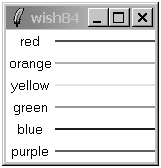
A Basic GridExample 26-1 uses grid to lay out a set of labels and frames in two parallel columns. It takes advantage of the relative placement feature of grid. Instead of specifying rows and columns, the order of grid commands and their arguments implies the layout. Each grid command starts a new row, and the order of the widgets in the grid command determines the column. In the example, there are two columns, and each iteration of the loop adds a new row. grid makes each column just wide enough to hold the biggest widget. Widgets that are smaller are centered in their cell. That's why the labels appear centered in their column: Example 26-1 A basic grid
foreach color {red orange yellow green blue purple} {
   label .l$color -text $color -bg white
   frame .f$color -background $color -width 100 -height 2
   grid .l$color .f$color
}
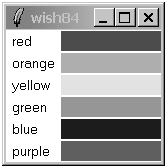
The -sticky SettingIf a grid cell is larger than the widget inside it, you can control the size and position of the widget with the -sticky option. The -sticky option combines the functions of -fill and -anchor used with the pack geometry manager. You specify to which sides of its cell a widget sticks. You can specify any combination of n, e, w, and s to stick a widget to the top, right, left, and bottom sides of its cell. You can concatenate these letters together (e.g., news) or uses spaces or commas to separate them (e.g., n,e,w,s). Example 26-2 uses -sticky w to left justify the labels, and -sticky ns to stretch the color frames to the full height of their row: Example 26-2 A grid with sticky settings
foreach color {red orange yellow green blue purple} {
   label .l$color -text $color -bg white
   frame .f$color -background $color -width 100 -height 2
   grid .l$color .f$color
   grid .l$color -sticky w
   grid .f$color -sticky ns
}
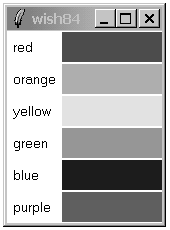
Example 26-2 uses grid in two ways. The first grid in the loop fixes the positions of the widgets because it is the first time they are assigned to the master. The next grid commands modify the existing parameters; they just adjust the -sticky setting because their row and column positions are already known. You can specify row and column positions explicitly with the -row and -column attributes. This is generally more work than using the relative placement, but it is necessary if you need to dynamically move a widget into a different cell. Example 26-3 keeps track of rows and columns explicitly and achieves the same layout as Example 26-2: Example 26-3 A grid with row and column specificationsset row 0 foreach color {red orange yellow green blue purple} { label .l$color -text $color -bg white frame .f$color -background $color -width 100 grid .l$color -row $row -column 0 -sticky w grid .f$color -row $row -column 1 -sticky ns incr row } External Padding with -padx and -padyYou can keep a widget away from the edge of its cell with the -padx and -pady settings. Example 26-4 uses external padding to shift the labels away from the left edge, and to keep some blank space between the color bars: Example 26-4 A grid with external padding
foreach color {red orange yellow green blue purple} {
   label .l$color -text $color -bg white
   frame .f$color -background $color -width 100 -height 2
   grid .l$color .f$color
   grid .l$color -sticky w -padx 3
   grid .f$color -sticky ns -pady 1
}
Tk 8.4 added the ability to specify asymmetric padding as a list of two screen distances. For example, -padx {0.125i 0.25i} adds 1/8 inch of padding to the left and 1/4 inch padding to the right of a widget. Internal Padding with -ipadx and -ipadyYou can give a widget more display space than it normally needs with internal padding. The internal padding increases the size of the grid. In contrast, a -sticky setting might stretch a widget, but it will not change the size of the grid. Example 26-5 makes the labels taller with -ipady: Example 26-5 A grid with internal padding
foreach color {red orange yellow green blue purple} {
   label .l$color -text $color -bg white
   frame .f$color -background $color -width 100 -height 2
   grid .l$color .f$color
   grid .l$color -sticky w -padx 3 -ipady 5
   grid .f$color -sticky ns -pady 1
}
Multiple Widgets in a CellExample 26-6 shows all possible -sticky settings. It uses the ability to put more than one widget into a grid cell. A large square frame is put in each cell, and then a label is put into the same cell with a different -sticky setting. It is important to create the frame first so it is below the label. Window stacking is discussed on page 409. External padding is used to keep the labels away from the edge so that they do not hide the -ridge relief of the frames. Example 26-6 All combinations of -sticky settings
set index 0
foreach x {news ns ew  " " new sew wsn esn nw ne sw se n s w e} {
   frame .f$x -borderwidth 2 -relief ridge -width 40 -height 40
   grid .f$x -sticky news \
      -row [expr {$index/4}] -column [expr {$index%4}]
   label .l$x -text $x -background white
   grid .l$x -sticky $x -padx 2 -pady 2 \
      -row [expr {$index/4}] -column [expr {$index%4}]
   incr index
}
 |
| [ Team LiB ] |
|