| [ Team LiB ] |
|
Custom DialogsWhen you create your own dialogs, you need to understand keyboard focus, focus grabs, and how to wait for the user to finish with a dialog. Here is the general structure of your code when creating a dialog: # Create widgets, then focus $toplevel grab $toplevel tkwait window $toplevel This sequence of commands directs keyboard focus to the toplevel containing your dialog. The grab forces the user to interact with the dialog before using other windows in your application. The tkwait command returns when the toplevel window is destroyed, and this automatically releases the grab. This assumes that the button commands in the dialog destroy the toplevel. The following sections explain these steps in more detail, and Example 39-1 on page 606 illustrates a more robust sequence. Input FocusThe window system directs keyboard events to the toplevel window that currently has the input focus. The application, in turn, directs the keyboard events to one of the widgets within that toplevel window. The focus command sets focus to a particular widget, and it is used by the default bindings for Tk widgets. Tk remembers what widget has focus within a toplevel window and automatically gives focus to that widget when the system gives focus to a toplevel window. On Windows and Macintosh, the focus is given to an application when you click in its window. On UNIX, the window manager application gives focus to different windows, and window managers allow different conventions to shift focus. The click-to-type model is similar to Windows and Macintosh. There is also focus-follows-mouse, which gives focus to the window under the mouse. One thing to note about click-to-type is that the application does not see the mouse click that gives the window focus. Once the application has focus, you can manage the focus changes among your widgets any way you like. By default, Tk uses a click-to-type model. Text and entry widgets set focus to themselves when you click on them with the left mouse button. You can get the focus-follows-mouse model within your widgets by calling the tk_focusFollowsMouse procedure. However, in many cases you will find that an explicit focus model is actually more convenient for users. Carefully positioning the mouse over a small widget can be tedious. The focus CommandTable 39-4 summarizes the focus command. The focus implementation supports multiple displays with a separate focus window on each display. This is useful on UNIX where X supports multiple displays. The -displayof option can be used to query the focus on a particular display. The -lastfor option finds out what widget last had the focus within the same toplevel as another window. Tk will restore focus to that window if the widget that has the focus is destroyed. The toplevel widget gets the focus if no widget claims it.
Keyboard Focus TraversalUsers can change focus among widgets with <Tab> and <Shift-Tab>. The creation order of widgets determines a traversal order for focus that is used by the tk_focusNext and tk_focusPrev procedures. There are global bindings for <Tab> and <Shift-Tab> that call these procedures:
bind all <Tab> {tk_focusNext %W}
bind all <Shift-Tab> {tk_focusPrev %W}
The Tk widgets highlight themselves when they have the focus. The highlight size is controlled with the highlightThickness attribute, and the color of the highlight is set with the highlightColor attribute. The Tk widgets, even buttons and scrollbars, have bindings that support keyboard interaction. A <space> invokes the command associated with a button, if the button has the input focus. All widgets have a takeFocus attribute that the tk_focusNext and tk_focusPrev procedures use to determine if a widget will take the focus during keyboard traversal. There are four possible values to the attribute:
Grabbing the FocusAn input grab overrides the normal focus mechanism. For example, a dialog box can grab the focus so that the user cannot interact with other windows in the application. The typical scenario is that the application is performing some task but it needs user input. The grab restricts the user's actions so it cannot drive the application into an inconsistent state. In most cases you only need to use the grab and grab release commands. Note that the grab set command is equivalent to the grab command. Table 39-5 summarizes the grab command.
A global grab prevents the user from interacting with other applications, too, even the window manager. Tk menus use a global grab, for example, which is how they unpost themselves no matter where you click the mouse. When an application prompts for a password, a global grab is also a good idea. This prevents the user from accidentally typing their password into a random window. The next section includes examples that use the grab command. The tkwait CommandYou wait for the user to interact with the dialog by using the tkwait command. The tkwait waits for something to happen, and while waiting it allows events to be processed. Like vwait, you can use tkwait to wait for a Tcl variable to change value. You can also wait for a window to become visible, or wait for a window to be destroyed. Table 39-6 summarizes the tkwait command.
The variable specified in the tkwait variable command must be a global variable. Remember this if you use procedures to modify the variable. They must declare it global or the tkwait command will not notice the assignments. The tkwait visibility waits for the visibility state of the window to change. Most commonly this is used to wait for a newly created window to become visible. For example, if you have any sort of animation in a complex dialog, you could wait until the dialog is displayed before starting the animation. Destroying WidgetsThe destroy command deletes one or more widgets. If the widget has children, all the children are destroyed, too. Chapter 44 describes a protocol on page 661 to handle destroy events that come from the window manager. You wait for a window to be deleted with the tkwait window command. The focus, grab, tkwait sequenceIn practice, I use a slightly more complex command sequence than just focus, grab, and tkwait. You can remember what widget used to have the focus and then restore it after the dialog completes. When you do this, it is more reliable to restore focus before destroying the dialog. This prevents a tug of war between your application and the window manager. This sequence looks like:
set old [focus]
focus $toplevel
grab $toplevel
tkwait variable doneVar
grab release $toplevel
focus $old
destroy $toplevel
This sequence supports another trick I use, which is to unmap dialogs instead of destroying them. This way the dialogs appear more quickly the next time they are used. This makes creating the dialogs a little more complex because you need to see if the toplevel already exists. Chapter 44 describes the window manager commands used to map and unmap windows on page 661. Example 39-1 shows Dialog_Create, Dialog_Wait, and Dialog_Dismiss that capture all of these tricks: Example 39-1 Procedures to help build dialogs
proc Dialog_Create {top title args} {
   global dialog
   if [winfo exists $top] {
      switch -- [wm state $top] {
         normal {
            # Raise a buried window
            raise $top
         }
         withdrawn -
         iconic {
            # Open and restore geometry
            wm deiconify $top
            catch {wm geometry $top $dialog(geo,$top)}
         }
      }
      return 0
   } else {
      eval {toplevel $top} $args
      wm title $top $title
      return 1
   }
}
proc Dialog_Wait {top varName {focus {}}} {
   upvar $varName var

   # Poke the variable if the user nukes the window
   bind $top <Destroy> [list set $varName cancel]

   # Grab focus for the dialog
   if {[string length $focus] == 0} {
      set focus $top
   }
   set old [focus -displayof $top]
   focus $focus
   catch {tkwait visibility $top}
   catch {grab $top}

   # Wait for the dialog to complete
   tkwait variable $varName
   catch {grab release $top}
   focus $old
}
proc Dialog_Dismiss {top} {
   global dialog
   # Save current size and position
   catch {
      # window may have been deleted
      set dialog(geo,$top) [wm geometry $top]
      wm withdraw $top
   }
}
The Dialog_Wait procedure allows a different focus widget than the toplevel. The idea is that you can start the focus out in the appropriate widget within the dialog, such as the first entry widget. Otherwise, the user has to click in the dialog first. The catch statements in Dialog_Wait come from my experiences on different platforms. The tkwait visibility is sometimes required because grab can fail if the dialog is not yet visible. However, on other systems, the tkwait visi bility itself can fail in some circumstances. Tk reflects these errors, but in this case all that can go wrong is no grab. The user can still interact with the dialog without a grab, so I just ignore these errors. Prompter DialogExample 39-2 A simple dialog
proc Dialog_Prompt { string } {
   global prompt
   set f .prompt
   if [Dialog_Create $f "Prompt" -borderwidth 10] {
      message $f.msg -text $string -aspect 1000
      entry $f.entry -textvariable prompt(result)
      set b [frame $f.buttons]
      pack $f.msg $f.entry $f.buttons -side top -fill x
      pack $f.entry -pady 5
      button $b.ok -text OK -command {set prompt(ok) 1}
      button $b.cancel -text Cancel \
         -command {set prompt(ok) 0}
      pack $b.ok -side left
      pack $b.cancel -side right
      bind $f.entry <Return> {set prompt(ok) 1 ; break}
      bind $f.entry <Control-c> {set prompt(ok) 0 ; break}
   }
   set prompt(ok) 0
   Dialog_Wait $f prompt(ok) $f.entry
   Dialog_Dismiss $f
   if {$prompt(ok)} {
      return $prompt(result)
   } else {
      return {}
   }
}
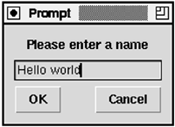
Dialog_Prompt "Please enter a name"
Example 39-2 shows Dialog_Prompt, which gets a value from the user, returning the value entered, or the empty string if the user cancels the operation. Dialog_Prompt uses the Tcl variable prompt(ok) to indicate the dialog is complete. The variable is set if the user presses the OK or Cancel buttons, or if the user presses <Return> or <Control-c> in the entry widget. The Dialog_Wait procedure waits on prompt(ok), and it grabs and restores focus. If the Dialog_Create procedure returns 1, then the dialog is built: otherwise, it already existed. Keyboard Shortcuts and FocusFocus is set on the entry widget in the dialog with Dialog_Wait, and it is convenient if users can use special key bindings to complete the dialog. Otherwise, they need to take their hands off the keyboard and use the mouse. The example defines bindings for <Return> and <Control-c> that invoke the OK and Cancel buttons, respectively. The bindings override all other bindings by including a break command. Otherwise, the Entry class bindings insert the short-cut keystroke into the entry widget. |
| [ Team LiB ] |
|