The Scale Widget
The scale widget displays a slider in a trough. The trough represents a range of numeric values, and the slider position represents the current value. The scale can have an associated label, and it can display its current value next to the slider. The value of the scale can be used in three different ways:
Explicitly get and set the value with widget commands. Associate the scale with a Tcl variable. The variable is kept in sync with the value of the scale, and changing the variable affects the scale. Register a Tcl command to be executed after the scale value changes. You specify the initial part of the Tcl command, and the scale implementation adds the current value as another argument to the command.
Example 32-8 A scale widget
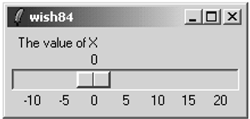
scale .scale -from -10 -to 20 -length 200 -variable x \
   -orient horizontal -label "The value of X" \
   -tickinterval 5 -showvalue true
pack .scale
Example 32-8 shows a scale for a variable that ranges in value from -10 to +20. The variable x is defined at the global scope. The tickinterval option results in the labels across the bottom, and the showvalue option causes the current value to be displayed. The length of the scale is in screen units (i.e., pixels).
Scale Bindings
Table 32-4 lists the bindings for scale widgets. You must direct focus to a scale explicitly for the key bindings like <Up> and <Down> to take effect.
Table 32-4. Bindings for scale widgets<Button-1> | Clicking on the trough moves the slider by one unit of resolution toward the mouse click. | <Control-Button-1> | Clicking on the trough moves the slider all the way to the end of the trough toward the mouse click. | <Left> <Up> | Moves the slider toward the left (top) by one unit. | <Control-Left>
<Control-Up> | Moves the slider toward the left (top) by the value of the bigIncrement attribute. | <Right> <Down> | Moves the slider toward the right (bottom) one unit. | <Control-Right>
<Control-Down> | Moves the slider toward the right (bottom) by the value of the bigIncrement attribute. | <Home> | Moves the slider all the way to the left (top). | <End> | Moves the slider all the way to the right (bottom). |
Scale Attributes
Table 32-5 lists the scale widget attributes. The table uses the resource name, which has capitals at internal word boundaries. In Tcl commands the attributes are specified with a dash and all lowercase.
Table 32-5. Attributes for scale widgetsactiveBackground | Background color when the mouse is over the slider. | background | The background color (also bg in commands). | bigIncrement | Coarse grain slider adjustment value. | borderWidth | Extra space around the edge of the widget. | command | Command to invoke when the value changes. The current value is appended as another argument | cursor | Cursor to display when mouse is over the widget. | digits | Number of significant digits in scale value. | from | Minimum value. The left or top end of the scale. | font | Font for the label. | foreground | Foreground color (also fg). | highlightBackground | Focus highlight color when widget does not have focus. | highlightColor | Focus highlight color when widget has focus. | highlightThickness | Thickness of focus highlight rectangle. | label | A string to display with the scale. | length | The length, in screen units, of the long axis of the scale. | orient | horizontal or vertical. | relief | flat, sunken, raised, groove, solid or ridge. | repeatDelay | Delay before keyboard auto-repeat starts. Auto-repeat is used when pressing <Button-1> on the trough. | repeatInterval | Time period between auto-repeat events. | resolution | The value is rounded to a multiple of this value. | showValue | If true, value is displayed next to the slider. | sliderLength | The length, in screen units, of the slider. | sliderRelief | The relief of the slider. | state | normal, active, or disabled. | takeFocus | Controls focus changes from keyboard traversal. | tickInterval | Spacing between tick marks. Zero means no marks. | to | Maximum value. Right or bottom end of the scale. | troughColor | The color of the bar on which the slider sits. | variable | Name of Tcl variable. Changes to the scale widget are reflected in the Tcl variable value, and changes in the Tcl variable are reflected in the scale display. | width | Width of the trough, or slider bar. |
Programming Scales
The scale operations are primarily used by the default bindings and you do not need to program the scale directly. Table 32-6 lists the operations supported by the scale. In the table, $w is a scale widget.
Table 32-6. Operations on the scale widget$w cget option | Returns the value of the configuration option. | $w configure ... | Queries or modifies the widget configuration. | $w coords ?value? | Returns the coordinates of the point in the trough that corresponds to value, or the scale's value. | $w get ?x y? | Returns the value of the scale, or the value that corresponds to the position given by x and y. | $w identify x y | Returns trough1, slider, or trough2 to indicate what is under the position given by x and y. | $w set value | Sets the value of the scale. |
|

