| [ Team LiB ] |
|
Frames, Labelframes, and Toplevel WindowsFrames have been introduced before for use with the geometry managers. There is not much to a frame, except for its background color and border. You can also specify a colormap and visual type for a frame. Chapter 41 describes visual types and colormaps on page 624. The labelframe widget, introduced in Tk 8.4, is a frame that can also display a widget along its border. The labelframe widget can create its own internal label, if needed, or it can automatically position a label widget that you create separately. A toplevel widget is like a frame, except that it is created as a new main window. That is, it is not positioned inside the main window of the application. This is useful for dialog boxes, for example. A toplevel has the same attributes as a frame, plus screen and menu attributes. The menu attribute is used to create menubars along the top edge of a toplevel. This feature was added in Tk 8.0, and it is described on page 464. On UNIX, the screen option lets you put the toplevel on any X display. The value of the screen option has the following format:
host:display.screenNum
For example, I have one X server on my workstation sage that controls two screens. My two screens are named sage:0.0 and sage:0.1. If the screenNum specifier is left off, it defaults to 0. Attributes for Frames, Labelframes, and ToplevelsTable 32-1 lists the attributes for the frame, labelframe, and toplevel widgets. The attributes are named according to their resource name, which includes a capital letter at internal word boundaries. When you specify an attribute in a Tcl command when creating or reconfiguring a widget, however, you specify the attribute with a dash and all lowercase letters. Chapter 31 explains how to use resource specifications for attributes. Chapters 40, 41, and 42 discuss many of these attributes in more detail.
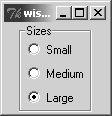
You cannot change the class, colormap, visual, or screen attributes after the frame, labelframe, or toplevel has been created. These settings are so fundamental that you need to destroy the frame and start over if you must change them. Using Labelframe WidgetsLabelframe widgets, which were added in Tk 8.4, function identically to simple frame widgets in most respects. However, they also have the ability to display a label along its border — either one that you create separately or an internal one created automatically by the labelframe. Another minor difference is that a labelframe has a default borderWidth of 2 and relief of groove, in comparison with the simple frame's default borderWidth of 0 and relief of flat. The rationale for this difference is that labelframes are used typically to set off distinct areas of a user interface, whereas frames are often used solely to group together other widgets for layout. In many cases, you can simply set the text attribute of the labelframe to display a textual label in the upper-left hand corner of the frame. Example 32-1 shows a labelframe around a group of radio buttons: Example 32-1 Labelframe example
labelframe .s -text Sizes
radiobutton .s.small -text Small -variable size -value small
radiobutton .s.med -text Medium -variable size -value medium
radiobutton .s.large -text Large -variable size -value large
.s.large select
pack .s.small .s.med .s.large -anchor w -padx 2 -pady 1
pack .s
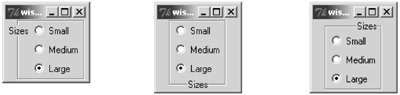
You can change the appearance of the label's text by setting the font and foreground attributes as desired. The labelAnchor attribute accepts a map direction which controls the position of the label along the frame's border. The default, nw, places the label on the north (top) border on the west (left) side. In contrast, setting the labelAnchor to wn places the label on the west (left) border towards the north (top) side, as shown in Example 32-2: Example 32-2 Using the labelAnchor option to position a labelframe's anchor
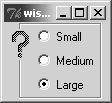
-labelanchor wn -labelanchor s -labelanchor ne You also have the option of creating a separate label widget, configuring it in any way that you like, and then associating it with a labelframe through the labelWidget attribute. The labelWidget attribute overrides any text value already set for the labelframe. Example 32-3 shows a label with a bitmap as the frame decoration: Example 32-3 Associating an existing label widget with a labelframe
label .l -bitmap question
.s configure -labelwidget .l -labelanchor wn
Embedding Other ApplicationsThe container and use attributes support application embedding. Embedding puts another application's window into a Tk frame or puts a Tk frame into another application. The use attribute specifies the ID of a window that will contain a Tk frame. Wish supports a -use command line argument that is used for the same purpose. Set the container attribute if you want to embed another window. For example, here is how to run another wish application and embed its window in one of your frames: frame .embed -container 1 -bd 4 -bg red exec wish somescript.tcl -use [winfo id .embed] & Toplevel Window StylesOn Windows and Macintosh there are several styles of toplevel windows. They differ in their appearance and their behavior. On UNIX, toplevel windows are usually decorated by the window manager, which is a separate application. Chapter 44 describes how to interact with the window manager. On Macintosh, Tk has an unsupported1 command that you can use to set the window style:
unsupported1 style window style
The possible values for style include documentProc, dBoxProc, plainDBox, altDBoxProc, movableDBoxProc, zoomDocProc, rDocProc, floatProc, floatZoomProc, floatSideProc, or floatSideZoomProc. The dBoxProc, plainDBox, and altDBoxProc styles have no title bar, so there is no close box on them. The other styles have different title bars, a close box, and possibly a full-sized zoom box. The default style is documentProc. I used the following code to see what each looked like: Example 32-4 Macintosh window styles
set x {documentProc dBoxProc plainDBox altDBoxProc \
   movableDBoxProc zoomDocProc rDocProc floatProc \
   floatZoomProc floatSideProc floatSideZoomProc}
foreach y $x {
   toplevel .$y
   label .$y.l -text $y
   pack .$y.l -padx 40 -pady 20
   if [catch {unsupported1 style .$y $y} err] {
      puts "$y: $err"
   }
}
This feature may appear as part of the wm command in future releases of Tk. On Windows you can get a couple different styles by using transient and overrideredirect windows, as well as with options to the wm attributes command, all of which are described starting on page 663.  |
| [ Team LiB ] |
|