| [ Team LiB ] |
|
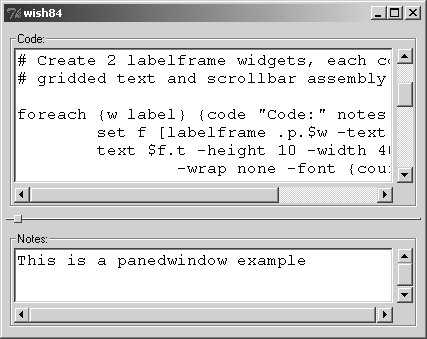
Using the PanedwindowThe panedwindow is a relatively simple widget, requiring little configuration or programming in most applications. The most frequently used configuration attribute is orient, which determines whether the widget has a horizontal or vertical arrangement of panes. The other frequently used configuration attribute is showHandle. The handle is a small square drawn on the sashes, giving users another visual cue that the sashes are interactive. The default value of showHandle is False on Windows to match its native look and feel. Most other configuration attributes control the size, positioning, and appearance of the handles, the sashes, and the widget in general. Manipulating the Pane ContentsOnce you've created the panedwindow, you add widgets to it with the add operation. You can add multiple widgets with a single add operation. The panedwindow displays each widget added in its own pane, separated by sashes. By default, the widgets are arranged in the order added. However, you can override this behavior with the -after and -before options to insert widgets after or before currently managed widgets. You can add horizontal and vertical padding to the widgets in the panes with -padx and -pady options, just like with other geometry managers. The -minsize attribute allows you to specify a minimum size for managed widgets (in any screen units supported by Tk.) You can also control the position of a widget within its pane with the -sticky attribute, which operates similarly to grid's -sticky attribute. The panedwindow's default -sticky setting is nsew, causing the managed widget to resize to completely fill its pane in both directions. A panedwindow widget is not only a container for other widgets, but it is also a geometry manager. It controls the size and position of the widgets that it manages. Therefore, don't use the pack, grid, or place commands to control the widgets that you add to a panedwindow. Of course, for more complex interfaces, you can add frames as the managed widgets of a panedwindow, and then pack, grid, or place other widgets within those frames. As an example, consider a layout with two text widgets. We'd like each text widget to have horizontal and vertical scrollbars, which is a natural application of grid. But then we want the entire layout managed by a 2-pane vertical panedwindow. In this case, we'll use a labelframe widget to contain each gridded text-and-scrollbar assembly, and then add each labelframe as a managed widget of our panedwindow. The result is shown in Example 28-1. Example 28-1 A panedwindow with complex managed widgets
# Create the panedwindow to manage the entire display

panedwindow .p -orient vertical -showhandle 1
pack .p -expand yes -fill both

# Create 2 labelframe widgets, each containing a
# gridded text and scrollbar assembly.

foreach {w label} {code "Code:" notes "Notes:"} {
   set f [labelframe .p.$w -text $label]
   text $f.t -height 10 -width 40 \
      -wrap none -font {courier 12} \
      -xscrollcommand [list $f.xbar set] \
      -yscrollcommand [list $f.ybar set]
   scrollbar $f.xbar -orient horizontal \
      -command [list $f.t xview]
   scrollbar $f.ybar -orient vertical \
      -command [list $f.t yview]

   grid $f.t -row 0 -column 0 -sticky news -padx 2 -pady 2
   grid $f.ybar -row 0 -column 1 -sticky ns -padx 2 -pady 2
   grid $f.xbar -row 1 -column 0 -sticky ew -padx 2 -pady 2
   grid columnconfigure $f 0 -weight 1
   grid rowconfigure $f 0 -weight 1

   # Add the frame assembly to the panedwindow

   .p add $f -minsize 1i -padx 4 -pady 6
}
The forget operation removes widgets from a panedwindow. The widgets aren't destroyed, but they are no longer managed by the paned window, and the pane they formerly occupied is removed from the panedwindow. You can also get a list of the widgets currently managed by a panedwindow (in the order in which they appear) with the panes operation. For best results, create the widgets managed by a panedwindow as children of that panedwindow. Tk then automatically handles the stacking order for windows so that the child appears on top of the panedwindow. If you don't create the managed widget as a child of the panedwindow, you either need to create the managed widget after the panedwindow, or else use the raise command to raise the managed widget above the panedwindow, as discussed in "Window Stacking Order" on page 409. |
| [ Team LiB ] |
|