Many of us, admittedly, only use computers because they're fun. But some people use computers to get stuff done, and the theory is that computers are supposed to make things faster, better, and more organized. In practice, though, it seems that we're a little bit different, and computers don't necessarily improve our lives without a little manual reconfiguration. Kevin Sonney likes to design systems, not just for networks but for his own work day, and this year he covered 19 different productivity tools in a series of articles. This article gets all of Kevin's favourite tools in one place, and provides a quick summary of what each one can do for you.
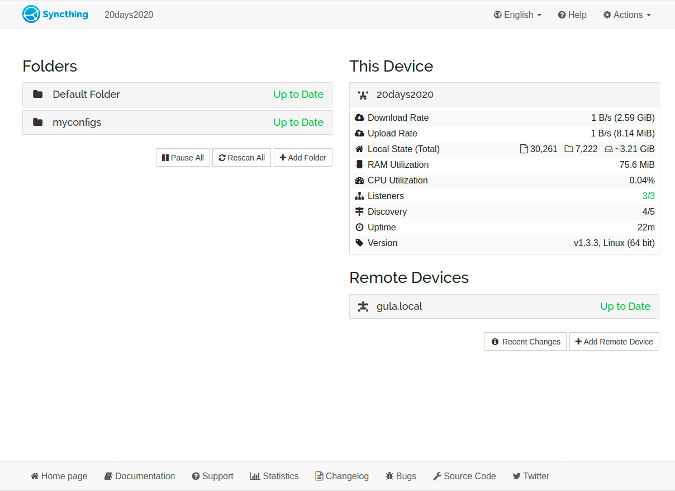
Syncthing is a way for you to keep files on different devices in sync with one another. A device can be a Linux or Windows or Mac computer, a server, an Android tablet or phone (and so on), and the files can be any file you want to keep updated across many machines. Syncthing is lightweight and peer-to-peer, so you don't need to pay for a service, you don't need a third-party server, and it's fast.
I use Syncthing on select files I use on my work laptop and my personal desktop computer. These tend to be configuration files or technical notes about software that I use both at work and at home. Installation's a breeze, and the sync process is a lot faster when happening on the local network compared to my old solution of sending files to my Nextcloud or Git servers. If you have files on multiple devices that you want to share and keep updated, use Syncthing.
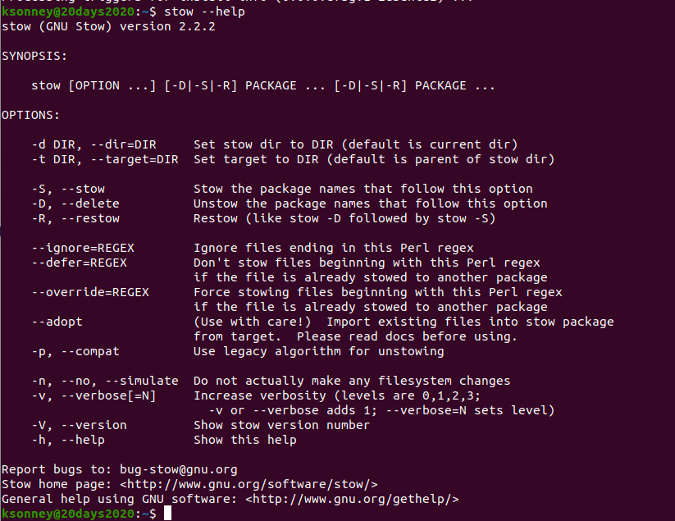
All the most popular operating systems have symlinks (sometimes called an alias or shortcut), but when you start using Linux you get to see their hidden potential. Symlinks serve as a predictable destination for an application or OS, while providing the user the ability to manipulate what's actually there. For instance, if you want an application to behave differently depending on whether it's being used as a graphical application or as a console application, then you can change the config file between, say, .foo-gui and foo-term by changing which its symlink points to. Doing that manually is entirely possible, but it could be scripted, and that's essentially what GNU Stow is.
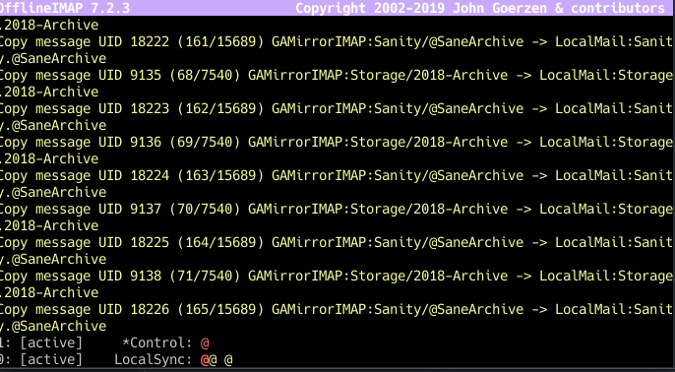
I use OfflineIMAP every day to sync work email to my laptop for viewing in Mutt. It's a specific tool that does exactly one thing: it ensures that a local copy of your email inbox mirrors your remote inbox. It's relatively easy to set up, schedule with cron, and then you can forget it exists. Easy and worth every minute you spend fighting with IMAP.
Notmuch indexes, tags, and searches mail messages. If you have a problem with your inbox, it takes not much effort to remedy it.
vim email and calendar https://opensource.com/article/20/1/vim-email-calendar emacs email and calendar https://opensource.com/article/20/1/emacs-mail-calendar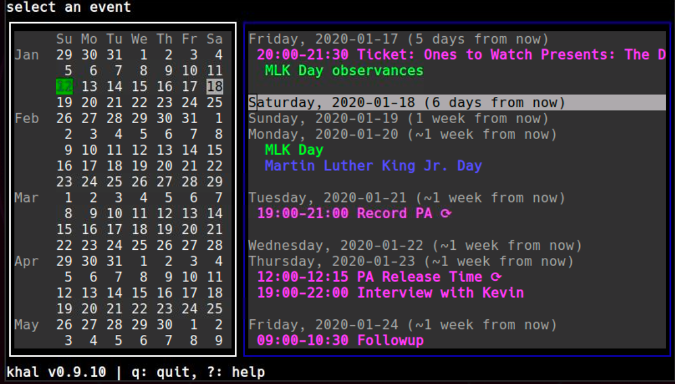
Every Linux system I've ever used comes with the cal command installed. This is a handy little calendar for the terminal, and it's a great quick reference. However, it's hardly what you'd call a calendaring application. The iCalendar specification (no relation to Apple's old desktop calendar) provides rich shared calendaring functionality, and while .ics appointments and events are plain text, the workflow for managing them in the terminal is basically non-existent. Or at least, it was non-existent until khal and vdirsyncer.
Khal is a console-based calendar that reads and writes .ics files. Vdirsyncer is a terminal command that synchronizes online calendars (and contacts) to your local drive. Khal works locally and Vdirsyncer works remotely, so your calendars online stay in sync with the calendar you're managing on your hard drive.
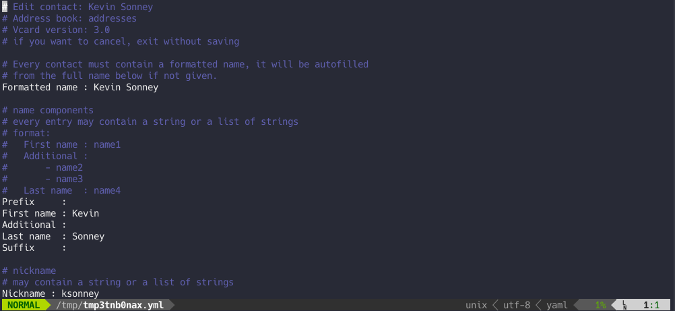
Contact management can be hard, but it gets easier if you use khard, a terminal command that reads and writes files in the vcard format. This, in turn, can be syncronized to a remote server using vdirsyncer (which you may already be using for your khal calendar, as listed elsewhere in this article). This makes calendaring and contacts easy, and it's easier than ever to run your own personal information management (PIM) server.
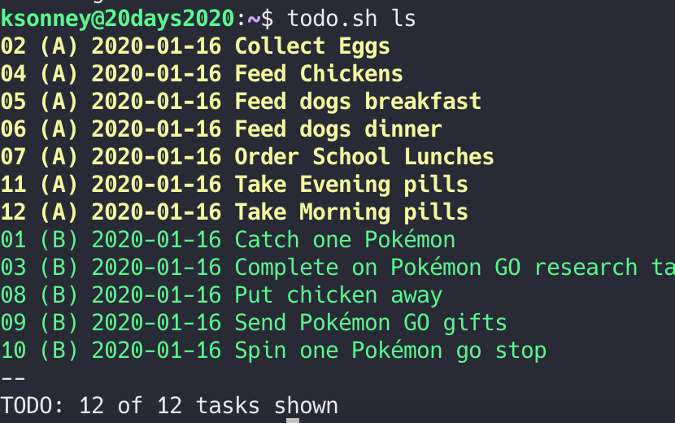
There are many ways to organize your day, but one of the simplest is todo.txt, a simple, portable, understandable system that doesn't break down even if a device doesn't have todo.txt installed on it. The reason todo.txt works is because it's just a Bash shell script, which runs on nearly any computing device you can find. The process is simple: you download the script, install it to your home directory, and start scheduling tasks with a simple command. If you're on a computer that doesn't have the todo.sh command installed on it, your todo list is still useful as a plain text file, which you can update manually as needed.
 Reddit https://opensource.com/article/20/1/open-source-reddit-client
RSS - Newsboat https://opensource.com/article/20/1/open-source-rss-feed-reader
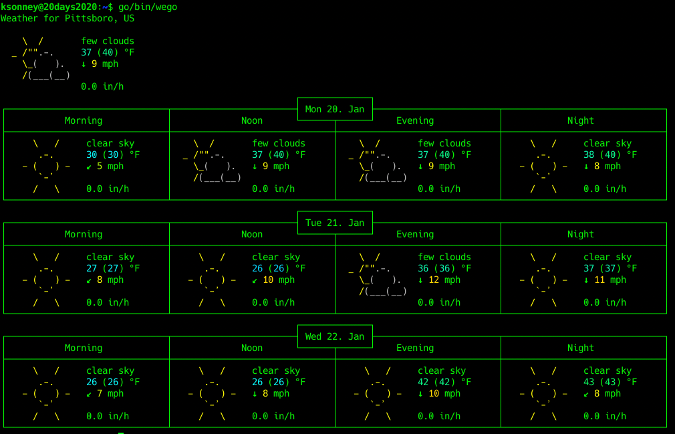
weather - wego https://opensource.com/article/20/1/open-source-weather-forecast
vim reddit and twitter https://opensource.com/article/20/1/vim-task-list-reddit-twitter
https://opensource.com/article/20/1/emacs-social-track-todo-list
Reddit https://opensource.com/article/20/1/open-source-reddit-client
RSS - Newsboat https://opensource.com/article/20/1/open-source-rss-feed-reader
weather - wego https://opensource.com/article/20/1/open-source-weather-forecast
vim reddit and twitter https://opensource.com/article/20/1/vim-task-list-reddit-twitter
https://opensource.com/article/20/1/emacs-social-track-todo-list
 split terminal https://opensource.com/article/20/1/tmux-console
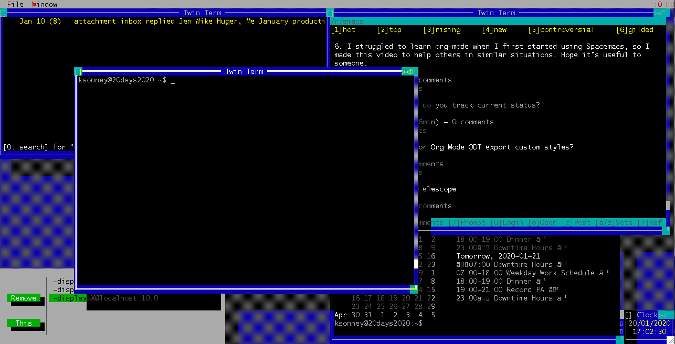
DESQview https://opensource.com/article/20/1/multiple-consoles-twin
split terminal https://opensource.com/article/20/1/tmux-console
DESQview https://opensource.com/article/20/1/multiple-consoles-twin