
ant
directory to the main directory of your Android project:
dexguard-project.txt
eclipse directory to
the dropins directory of your Eclipse install:
com.saikoa.dexguard.eclipse.adt_*.jar
-clean option.
If you experience any compatibility problems, you should check and possibly update the version of the plugin of the Android Developer Tools:
Help > About Eclipse SDK > Installation Details > Installed Software
File > Export... > Export Optimized and Obfuscated Android Application (DexGuard)


The DexGuard Eclipse plugin picks up custom configurations from the following optional files in your Android project:
dexguard-project.txt         (for all builds)
dexguard-project-debug.txt   (for debug builds)
dexguard-project-release.txt (for release builds)
proguard-project.txt         (for backward compatibility with ProGuard)
The default version of the first file contains a number of settings that can be enabled to perform string encryption, class encryption, and to hide access to sensitive APIs.
The logs for debug builds and export builds are sent to the Android console panel.
Window > Preferences > Android > Obfuscation (DexGuard)


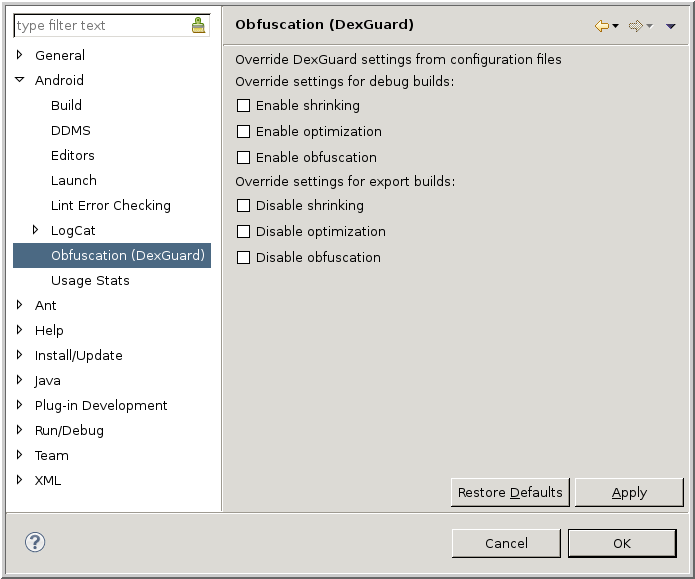
By default, debug builds don't shrink, optimize, or obfuscate the application. You can enable shrinking if your application is otherwise too large for the size constraints of the Dalvik format. Make sure that you have suitable configuration files for your project, so DexGuard doesn't inadvertedly remove code that is only accessed through reflection. If you only enable shrinking, you can still debug the processed application interactively. If you enable optimization or obfuscation, it's generally no longer possible to debug the processed application interactively, since the bytecode no longer corresponds closely to the source code.
On the other hand, export builds generally do shrink, optimize, and obfuscate the application. You can interactively disable any of these steps if ever needed.
Window > Preferences > Android > Build
You can also disable the DexGuard builder for regular builds, in the properties panel of each project:
Project > Properties > Builders > Android Optimizer and Obfuscator (DexGuard)


After having disabled the builder, you currently need to restart the project to properly reinitialize the builders.
-clean -console -consoleLog
    -debug
. The separate console window then provides more information
about the inner workings of Eclipse and its plugins.Please consult the more extensive troubleshooting section if you encounter other issues building or running your application.
com.saikoa.dexguard.eclipse.adt_*.jar again from
the dropins directory of your Eclipse install.